
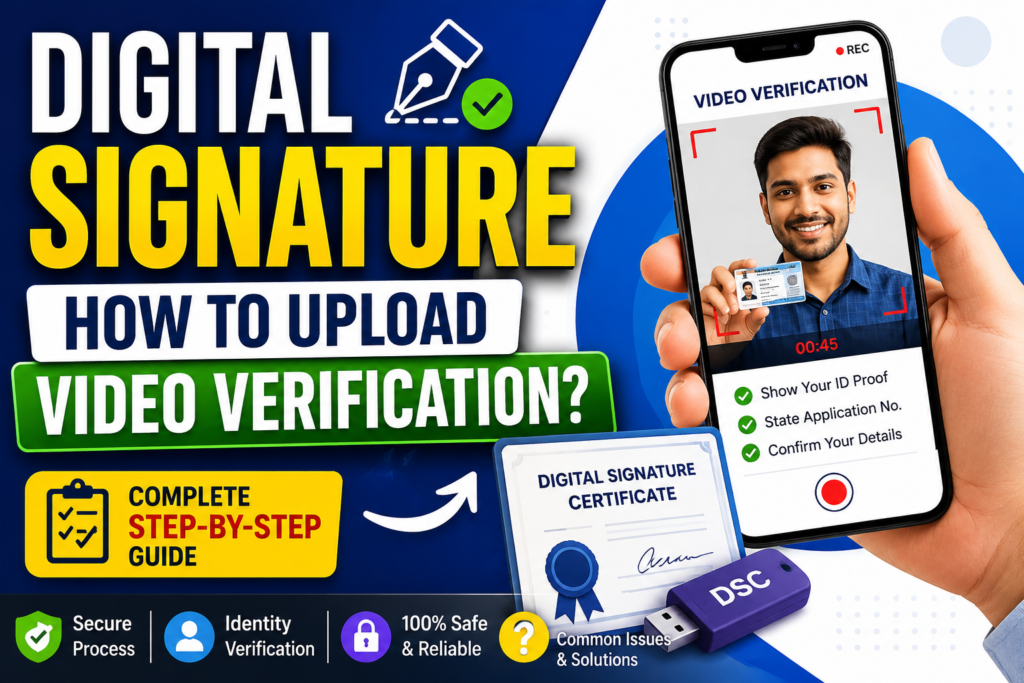
A Digital Signature Certificate (DSC) is an essential digital identity tool used by individuals, professionals, businesses, and organisations to authenticate electronic documents and complete online transactions securely. In India, Digital Signature Certificates are widely used for MCA company filings, GST-related processes, income tax services, e-tendering, government portals, and other online applications.
During the process of obtaining or renewing a Digital Signature Certificate, applicants may be required to complete video verification. This verification step helps the Certifying Authority (CA) confirm the applicant’s identity and ensure that the DSC application is genuine.
Many applicants find the video verification process confusing, particularly when they are asked to record a video, upload it to a verification portal, or complete a live video session. Understanding the correct procedure can help applicants avoid common errors and complete their DSC application more efficiently.
In this guide, we explain how to upload video verification for a Digital Signature Certificate, how to prepare your documents, how to record an acceptable video, and how to resolve common upload and verification issues.
What Is Digital Signature Video Verification?
Digital Signature Certificate video verification is an identity verification process used by a Certifying Authority or its authorised Registration Authority to confirm the identity of a person applying for a DSC.
Depending on the provider and the applicable verification procedure, applicants may be asked to record a short video, upload a prerecorded video, or participate in a live video verification session.
During verification, the applicant may need to:
- Confirm their identity and personal details.
- Show an original identity document or other requested documents.
- State a verification code, application number, or other details provided by the portal.
- Confirm that the information submitted in the DSC application is accurate.
- Follow instructions displayed on the verification screen.
The exact requirements depend on the Certifying Authority, the type of Digital Signature Certificate, and the applicable verification process.
Video verification is intended to help prevent identity fraud, impersonation, and unauthorised issuance of digital certificates.
Why Is Video Verification Required for a DSC?
A Digital Signature Certificate is linked to the identity of its certificate holder. Therefore, verifying the applicant’s identity is an important part of the certificate issuance process.
Video verification can help establish that the applicant is the person named in the application and that the supporting information is genuine.
The process may be required for several reasons:
1. Identity confirmation: The verification process helps confirm the applicant’s identity using the requested identification documents and personal details.
2. Fraud prevention: Video verification can help reduce the risk of fraudulent DSC applications submitted using another person’s information.
3. Application validation: The Certifying Authority may use the video and supporting information to review the application before issuing the certificate.
4. Regulatory compliance: Certifying Authorities must follow applicable Indian legal and regulatory requirements for issuing Digital Signature Certificates.
5. Secure digital transactions: Proper identity verification supports the reliable use of digital signatures for electronic transactions and document authentication.
How to Upload Video Verification for a Digital Signature Certificate
The precise steps may differ between DSC providers. However, the following procedure covers the typical process for uploading a verification video through a DSC application portal.
Check This Instruction Video
Step 1: Visit the DSC Provider’s Official Website
First, open the official website of the Certifying Authority or authorised DSC service provider through which you applied for your Digital Signature Certificate.
Locate the relevant section for:
- DSC application tracking
- Video verification
- Applicant verification
- Complete KYC
- Application status
- Pending verification
Some providers send a verification link directly to the applicant’s registered email address or mobile number.
If you have received an official verification link, open that link and follow the instructions provided by the service.
Important: Always check that the website belongs to the intended provider before entering personal information or uploading identity documents.
Step 2: Log In or Open Your Verification Link
Depending on the provider, you may need to log in using your application credentials or open a unique verification link.
You may be asked to enter details such as:
- DSC application number
- Registered mobile number
- Email address
- One-time password (OTP)
- Date of birth or other identifying information
Enter the information exactly as provided in your DSC application.
If the portal sends an OTP, enter the code within its validity period. Do not share your OTP with unauthorised individuals.
If you cannot log in, confirm that you are using the correct application details and that your verification link has not expired.
Step 3: Check the Video Verification Instructions
Before recording or uploading your video, carefully read the instructions displayed on the verification page.
The portal may specify:
- Whether a live video session or prerecorded video is required.
- The maximum video duration.
- Supported video formats.
- Maximum file size.
- Required camera and microphone permissions.
- Documents that must be shown during verification.
- Information that must be spoken in the recording.
Do not assume that every DSC provider accepts the same video format or follows the same verification procedure.
If the portal provides a built-in recording feature, use that feature when instructed instead of recording a video separately.
Step 4: Prepare Your Documents and Equipment
Before starting the verification process, keep the requested documents ready.
Depending on your application, these may include:
- PAN card or another accepted identity document.
- Aadhaar or another permitted identity document, where applicable.
- DSC application details.
- Supporting documents requested by the Certifying Authority.
The documents required will depend on the provider’s instructions and the type of application.
You should also prepare your recording equipment.
For a successful video verification, ensure that:
- Your smartphone or computer camera is working properly.
- Your microphone can record your voice clearly.
- Your internet connection is stable.
- Your face is clearly visible.
- The room has sufficient lighting.
- Your identity document can be read when shown to the camera.
- You are in a quiet location without unnecessary background noise.
Avoid strong backlighting, camera movement, and blurred recordings.
Step 5: Record the Video According to the Instructions
If the portal requires a prerecorded video, follow the specified recording instructions carefully.
Depending on the verification procedure, you may be asked to state your name, confirm application details, read a verification code, or show an identity document.
For example, the portal may instruct you to confirm that you are applying for a Digital Signature Certificate and that the information provided in your application is correct.
Follow the exact script or instructions provided by your DSC service provider.
Do not use an edited video, another person’s recording, or a video that misrepresents your identity.
If the process requires a live session, complete the session directly through the authorised verification platform.
Tip: Record in a well-lit environment, speak clearly, and ensure that all requested details are visible and audible.
Step 6: Check the Video Format and File Size
If you recorded the video separately, verify that the file meets the upload requirements displayed on the portal.
Common video formats include MP4 and MOV, but the accepted formats depend on the service provider.
Check the following before uploading:
| Requirement | What to check |
|---|---|
| File format | Use a format accepted by the verification portal. |
| File size | Ensure the video is within the stated upload limit. |
| Video duration | Follow the specified time limit. |
| Video clarity | Make sure your face and requested documents are visible. |
| Audio quality | Ensure your voice is clear and understandable. |
| File integrity | Confirm that the video plays correctly from beginning to end. |
If your video exceeds the maximum permitted file size, use a reputable video compression tool to reduce its size while maintaining sufficient clarity.
Do not modify the recording in a way that changes the meaning of the verification statements or conceals required information.
Step 7: Upload the Video to the Verification Portal
Once the video is ready, return to the official DSC verification page.
Look for an option such as Upload Video, Choose File, Browse, Select Recording, or Submit Video.
Follow these steps:
- Click the video upload option.
- Select the correct video file from your computer or smartphone.
- Wait for the file to finish uploading.
- Check whether the portal displays the selected filename or a video preview.
- Confirm that the selected file is the correct recording.
- Click Upload, Submit, or the relevant confirmation button, if required.
Keep the browser window open until the upload is complete.
If the website asks you to record a video directly through the browser, allow camera and microphone access when appropriate and follow the on-screen instructions.
Important: Selecting a file does not always mean that the video has been successfully submitted. Wait for a confirmation message or a status update before closing the page.
Step 8: Complete the Final Verification or Declaration
After uploading the video, the portal may ask you to review the submitted information or confirm a declaration.
Check that the applicant’s name and application details match the information provided in the DSC application.
If the portal requests an additional OTP, declaration, or confirmation, complete that step according to the displayed instructions.
Some providers may require further verification even after the video has been uploaded.
Step 9: Check Your DSC Application Status
After submitting your video, return to the application tracking page, if available.
The status may indicate that the video has been received, verification is pending, additional information is required, or the application has been approved.
The exact status labels vary between providers.
If verification is pending, allow the provider the time specified for processing. If the application remains pending beyond the stated timeframe, contact the provider using its official support channel.
Remember that successful video upload does not automatically mean that your Digital Signature Certificate has been approved or issued.
How to Upload DSC Video Verification Using a Mobile Phone
Applicants can often complete video verification using a smartphone, provided that the DSC provider supports mobile verification.
Follow these steps:
- Open the official verification link on your smartphone.
- Use a supported and updated browser.
- Grant camera and microphone permissions when required.
- Record the video according to the portal’s instructions.
- If uploading a prerecorded video, locate the file in your phone’s gallery or file manager.
- Select the file and wait for the upload to finish.
- Submit the video and check for confirmation.
If the video is stored in a messaging application’s folder, make sure you select the correct file.
A stable Wi-Fi or mobile data connection can help prevent interruptions during the upload.
If the portal does not work properly on a mobile browser, try a supported desktop browser or contact the provider to confirm which devices are compatible.
Common DSC Video Upload Problems and Their Solutions
Applicants may encounter technical issues while uploading video verification. Most can be investigated by checking the file, browser, internet connection, and provider-specific instructions.
1. Video File Is Too Large
Problem: The portal rejects the video because it exceeds the permitted file size.
Solution: Check the maximum upload limit and compress the video using a reputable tool. Maintain sufficient resolution so that your face and requested documents remain clearly visible.
2. Unsupported Video Format
Problem: The website does not accept the selected recording.
Solution: Check the supported formats specified by the provider. If necessary, convert the recording to an accepted format without altering its substantive content.
3. Video Upload Is Stuck
Problem: The progress indicator stops or the upload does not finish.
Solution:
- Check your internet connection.
- Try a more stable network.
- Close unnecessary browser tabs.
- Reload the page only if it is safe to do so.
- Sign in again if your session has expired.
- Contact support if the issue continues.
Before retrying, check whether the first submission was received to avoid unnecessary duplicate uploads.
4. Camera or Microphone Is Not Working
Problem: The verification page cannot access your camera or microphone.
Solution: Check your browser’s site permissions and device settings. Close other applications that may be using the camera, then reopen the verification page and grant the required permissions.
Only grant these permissions on the legitimate verification website.
5. Video Verification Rejected
Problem: The provider rejects the recording.
Possible reasons include:
- The face is not clearly visible.
- The identity document cannot be read.
- Required statements or verification codes are missing.
- The video does not follow the provider’s instructions.
- The applicant’s details do not match the application.
- The recording is incomplete or technically defective.
Solution: Review the rejection message carefully and follow the provider’s instructions for resubmission. If the reason is unclear, contact the verification team for clarification.
6. Verification Link Has Expired
Problem: The link no longer opens or displays an expired-session message.
Solution: Contact the DSC provider or use the official application portal to request a new verification link, if this option is available.
7. DSC Application Is Still Pending
Problem: The video has been submitted, but the application status has not changed.
Solution: Check whether the portal confirms receipt of the recording. Review your email and registered mobile number for additional requests. If the processing period has passed, contact the provider and quote your application reference number.
Best Practices for Successful Digital Signature Video Verification
Following a few precautions can help reduce avoidable verification problems.
Use accurate application details. Ensure that your name and other required details are consistent with the supporting documents and the information entered in the DSC application.
Follow the official instructions. Each provider may use a different recording method, file-size limit, or verification script.
Record a clear video. Ensure that your face is visible, your voice is understandable, and the requested documents can be read.
Use a secure internet connection. Avoid unreliable connections that may interrupt a live session or file upload.
Submit the correct recording. Double-check the file before submitting it.
Protect your personal information. Upload identity documents and videos only through the official verification channel. Avoid sharing sensitive documents through unknown links or unauthorised messaging accounts.
Keep your application reference number. It can help the support team locate your application if you encounter a problem.
What Happens After DSC Video Verification?
Once you complete the required video verification, the Certifying Authority reviews the submission according to its procedures and applicable requirements.
The next step may involve additional identity checks, document review, or a request for clarification.
If the application meets the relevant requirements, the provider may proceed with issuing the Digital Signature Certificate. You will generally receive further instructions through the provider’s official portal, registered email address, or another designated communication channel.
After issuance, follow the provider’s instructions to download, install, or use the certificate. Depending on the type of DSC and the intended application, you may also need compatible signing software, a cryptographic token, or portal-specific configuration.
If your DSC is intended for use on a government website, check that the certificate is valid and compatible with that website’s requirements.
Frequently Asked Questions About DSC Video Verification
1. How do we upload video verification for a Digital Signature Certificate?
Open the official DSC provider’s verification link or application portal. Follow the instructions, record a video or select a prerecorded recording if permitted, upload the file, and submit it. Complete any additional verification steps and check the application status.
2. Is video verification mandatory for every DSC application?
Not necessarily. The verification method depends on the type of certificate, the Certifying Authority, and the applicable requirements. Some applications may require a live video session, while others may use a different approved verification procedure.
3. Can we complete DSC video verification on a mobile phone?
Yes, if the provider supports mobile verification. Use a compatible browser, allow the required camera and microphone permissions, and follow the instructions on the verification page.
4. Which video format is required for DSC verification?
There is no single format that applies to every provider. Some portals may support MP4 or MOV, but applicants should check the accepted formats and file-size restrictions displayed by their service provider.
5. What should we do if DSC video verification fails?
Review the error or rejection message, check that your identity details are accurate, and ensure that the recording meets the provider’s requirements. Correct the identified problem and resubmit the video if permitted. Contact the provider if the reason for rejection is unclear.
6. How long does DSC video verification take?
The time required varies by provider and application. Some systems provide an immediate technical confirmation, while the actual identity verification and application review may take longer. Follow the processing timeframe communicated by the Certifying Authority.
7. Can we get a DSC immediately after uploading the video?
Not necessarily. Uploading the video is only one part of the application process. The certificate may be issued only after the provider completes the necessary verification and approval procedures.
8. What should we do if we do not receive a verification link?
Check your registered email inbox, spam folder, and SMS messages. If the link is still missing, contact the DSC provider or check your application dashboard for a verification option.
9. Can we upload the same video again if the first attempt fails?
This depends on the portal’s rules and the application’s status. Check whether the original submission was received and follow the provider’s instructions before attempting another upload.
10. Is it safe to upload identity documents for DSC verification?
It is important to use the official website or authorised verification channel. Confirm the website’s authenticity before uploading sensitive documents, and never share passwords or OTPs with unauthorised individuals.
Conclusion
Uploading video verification for a Digital Signature Certificate is an important step in many DSC application processes. By accessing the official verification portal, preparing the required documents, recording a clear video, following the specified file requirements, and checking the submission status, applicants can reduce common errors and complete the process more efficiently.
The most important point is to follow the instructions provided by your specific Certifying Authority, because video verification procedures, accepted formats, and identity requirements may differ.
If you encounter an upload error, rejected recording, expired link, or pending application, review the portal’s instructions and contact the authorised DSC service provider for assistance.
A correctly completed verification process helps establish your identity and supports the secure issuance and use of your Digital Signature Certificate for authorised digital transactions in India.