Digital Signature for ICEGATE
A Digital Signature Certificate (DSC) for ICEGATE is an essential digital authentication tool for businesses, exporters, importers, customs brokers, and other stakeholders involved in India’s international trade. It helps users authenticate their identity electronically, sign documents securely, and complete various online customs procedures through the ICEGATE portal.
ICEGATE, which stands for Indian Customs Electronic Gateway, is the official electronic portal of Indian Customs. It facilitates electronic communication between customs authorities and trade participants, including importers, exporters, customs brokers, shipping lines, airlines, and other authorized entities.
With the increasing digitization of customs procedures, a valid Digital Signature Certificate plays an important role in completing online transactions, submitting declarations, and accessing services that require digital authentication.
Whether we are registering a new business on ICEGATE, filing customs documents, or managing import-export operations, understanding how to obtain, register, and use a DSC can help us complete the process efficiently.
In this comprehensive guide, we explain the ICEGATE Digital Signature Certificate registration process, DSC requirements, application procedure, renewal, troubleshooting, and common mistakes to help users navigate digital customs services with greater confidence.
What Is a Digital Signature Certificate for ICEGATE?
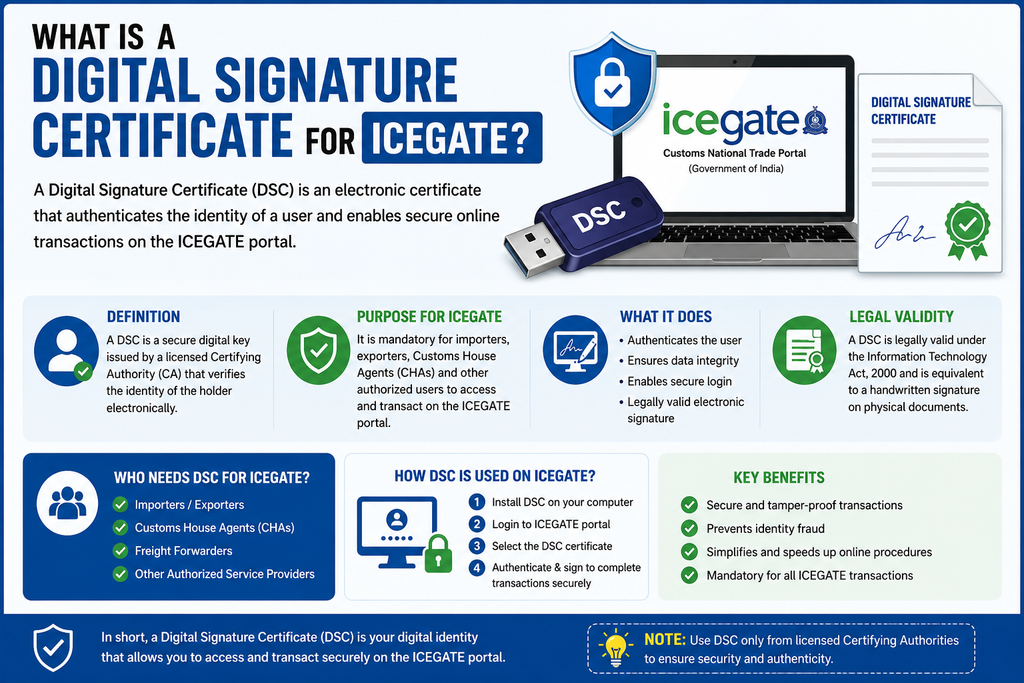
A Digital Signature Certificate (DSC) is an electronic credential issued by a licensed Certifying Authority (CA) in India. It establishes a verifiable connection between a person’s identity and their digital signature.
A DSC is commonly stored on a cryptographic USB token and protected by a password or PIN. When a user digitally signs an electronic document, the certificate helps verify the signer’s identity and detect unauthorized changes to the signed content.
For ICEGATE-related activities, a DSC may be required for specified registration, authentication, filing, or other online customs services, depending on the user’s role and the applicable portal requirements.
A valid DSC can help businesses:
- Authenticate authorized individuals electronically.
- Digitally sign supported customs documents and declarations.
- Complete applicable online registration procedures.
- Support secure electronic communication with customs systems.
- Reduce dependence on physical paperwork where digital processes are accepted.
- Improve the integrity and traceability of electronic transactions.
The exact certificate type and class should be confirmed against the current ICEGATE requirements before purchasing a certificate.
What Is ICEGATE and Why Is It Important?
The Indian Customs Electronic Gateway (ICEGATE) is an online platform maintained by Indian Customs under the Central Board of Indirect Taxes and Customs (CBIC).
The portal supports electronic interaction between customs authorities and the international trade community. It provides access to various services associated with import and export procedures.
Common ICEGATE-related activities include:
- Electronic filing of import and export declarations.
- Customs documentation and transaction processing.
- Electronic communication with customs systems.
- Tracking applicable customs documents and transactions.
- Accessing registration and account-related services.
- Using available services for importers, exporters, and customs brokers.
For businesses engaged in international trade, completing the necessary digital registration and authentication requirements is an important part of using these online services.
An appropriate DSC can help eligible users perform the electronic signing activities supported by the portal.
Who Needs a Digital Signature for ICEGATE?
A DSC may be required by individuals or organizations that use ICEGATE services requiring digital authentication or electronic signatures.
The following categories should check the current requirements applicable to their activities.
1. Importers
Importers bring goods into India from overseas suppliers. Depending on the transaction and portal requirements, they may need digital authentication to complete registration or submit specific electronic documents.
2. Exporters
Exporters use customs systems to facilitate the export of goods to international markets. An appropriate DSC may be required for supported electronic declarations and other authorized activities.
3. Customs Brokers
Customs brokers assist importers and exporters with customs clearance, documentation, and regulatory procedures. Digital authentication may be necessary for their authorized portal activities.
4. Companies and LLPs
Businesses registered as private limited companies, public limited companies, or limited liability partnerships may require certificates for authorized representatives who carry out digital transactions.
5. Proprietorships and Partnership Firms
Proprietors and partners involved in import-export operations should determine which registration and certificate requirements apply to their business structure and authorized signatories.
Important: The requirement for a DSC is determined by the specific ICEGATE service, user category, and current rules. We should not assume that every ICEGATE user needs the same certificate.
Which Digital Signature Certificate Is Required for ICEGATE?
Selecting the correct DSC is an important step before starting registration.
A certificate must meet the technical and identity-verification requirements of the intended service. The appropriate certificate may depend on the user’s role, organization, and current ICEGATE specifications.
Before purchasing a DSC, we recommend checking the following details:
- Certificate purpose: Confirm that the certificate supports the intended digital-signing activity.
- Applicant identity: Ensure that the certificate is issued to the correct individual or authorized signatory.
- Organization details: Check whether organizational information or supporting authorization documents are required.
- Validity period: Select an appropriate validity period offered by the Certifying Authority.
- USB token compatibility: Verify whether a compatible cryptographic token is required.
- Portal compatibility: Confirm that the certificate format and cryptographic specifications are accepted by ICEGATE.
A certificate’s class or signing capability should not be selected solely on the basis of a generic recommendation. Requirements can change, so users should verify the current instructions on the official ICEGATE portal and with the licensed Certifying Authority.
How to Apply for a Digital Signature Certificate for ICEGATE
Obtaining a DSC generally involves selecting a licensed Certifying Authority, completing an application, verifying the applicant’s identity, and receiving the issued certificate.
Step 1: Choose a Licensed Certifying Authority
The first step is to select a Certifying Authority authorized to issue Digital Signature Certificates in India.
Before proceeding, verify that the provider is licensed and offers the certificate type suitable for the intended ICEGATE activity.
Compare the available options based on:
- Certificate validity.
- Application and verification procedures.
- USB token availability.
- Technical support.
- Applicable fees.
- Renewal and replacement services.
Step 2: Select the Appropriate DSC
Choose the certificate according to the intended use and the current technical requirements of ICEGATE.
If the certificate is intended for an organization, confirm whether the application must be completed in the name of an authorized representative and whether organizational documents are needed.
Avoid purchasing a certificate until the required certificate type and identity details have been confirmed.
Step 3: Complete the Online Application
Visit the selected Certifying Authority’s official website and complete the application form.
The information requested may include:
- Applicant’s full name.
- Email address and mobile number.
- Identity and address details.
- Organization information, where applicable.
- Certificate purpose and validity.
- Supporting documents required by the provider.
Enter the information carefully. The details submitted for verification should match the applicable identity and organizational records.
Step 4: Complete Identity Verification
The Certifying Authority will conduct the prescribed verification process.
Depending on the provider and applicable rules, verification may involve electronic identity verification, document submission, video verification, or other approved methods.
Complete all required steps and respond to any additional verification requests.
Step 5: Receive the Digital Signature Certificate
After the application has been approved, the Certifying Authority will issue the DSC through its supported delivery process.
If the certificate is issued using a USB cryptographic token, follow the provider’s instructions for installing the required token software and accessing the certificate.
Keep the token PIN confidential and do not share it with unauthorized individuals.
Step 6: Install the Required Software
Some digital-signing workflows require a compatible token driver, certificate utility, browser configuration, or signing component.
Install software only from the official provider or an authorized source.
Before proceeding, verify that the software is compatible with your operating system and the current ICEGATE signing requirements.
Step 7: Test the Certificate
Before attempting an important customs transaction, confirm that the certificate is detected correctly and that the required signing software is functioning.
If the portal provides a certificate registration or testing facility, follow its current instructions.
Successful installation on a computer does not automatically mean that the certificate has been registered with ICEGATE.
How to Register a Digital Signature Certificate on ICEGATE
After obtaining a DSC, eligible users may need to register it on the ICEGATE portal before using it for supported services.
The precise menu names and steps can change when the portal is updated. The following process provides a general guide.
Step 1: Visit the Official ICEGATE Website
Open the official ICEGATE portal:
Check that the website address is correct before entering your login credentials or connecting a digital-signature token.
Step 2: Sign In to Your ICEGATE Account
Log in using the credentials and authentication method applicable to your account.
If you have not completed the required registration, follow the current registration procedure for your user category.
Step 3: Locate the DSC Registration Facility
Navigate to the relevant user profile, registration, or digital-signature management section available on the portal.
Look for the option associated with Digital Signature Certificate registration or management.
The location and terminology of this feature may vary according to the portal’s current interface and user permissions.
Step 4: Connect Your USB Token
If your certificate is stored on a USB token, connect it to the computer.
Ensure that the correct token driver is installed and that the certificate is visible through the supported certificate utility.
If the token is not detected, reconnect it and verify that the required software is functioning.
Step 5: Select the Correct Certificate
If more than one certificate is available, select the certificate that matches the authorized user and intended activity.
Check the certificate holder’s details and validity period before proceeding.
Using the wrong certificate may cause registration or authentication to fail.
Step 6: Complete the Registration Process
Follow the instructions displayed on the ICEGATE portal.
Depending on the current workflow, you may need to authorize the certificate, enter the token PIN, or complete an additional authentication step.
Submit the registration request and wait for the portal to display the result.
Step 7: Confirm Registration Status
After completing the process, check the portal for a success message or an updated certificate status.
If registration fails, review the displayed error and verify the certificate, token software, browser environment, and account permissions before trying again.
Important: These are general steps rather than a guarantee of the exact current screen sequence. Always follow the latest official ICEGATE instructions for the specific registration facility.
Documents Required for an ICEGATE DSC Application
The documents required for obtaining a DSC depend on the Certifying Authority, applicant type, and verification method.
Commonly requested information or documents may include:
| Applicant category | Potential requirements |
|---|---|
| Individual | Identity details, contact information, and prescribed verification |
| Proprietorship | Proprietor’s identity details and applicable business information |
| Partnership firm | Authorized signatory details and supporting business documents, where required |
| Private limited company | Authorized signatory information and applicable organizational documents |
| LLP | Designated partner or authorized signatory details and applicable LLP records |
| Customs broker | Individual or organizational credentials and applicable authorization |
This table is indicative, not a definitive document checklist. The issuing Certifying Authority will specify the documents and verification steps applicable to the application.
For ICEGATE registration, additional account-specific information or authorization may be required separately from the DSC application.
How to Renew an ICEGATE Digital Signature Certificate
A Digital Signature Certificate has a defined validity period. Once it expires, it generally cannot be relied upon for new digital-signing operations that require a valid certificate.
We recommend checking the expiry date periodically and beginning the renewal process before the certificate becomes invalid.
Steps for DSC Renewal
- Check the certificate’s expiry date.
- Contact the original Certifying Authority or another authorized provider.
- Review the renewal procedure and identity-verification requirements.
- Submit the renewal application and any required information.
- Complete the prescribed verification process.
- Install or access the renewed certificate according to the provider’s instructions.
- Complete any ICEGATE certificate update or re-registration procedure required by the portal.
Renewal does not necessarily mean that the renewed certificate will automatically replace the existing certificate on every portal.
If the new certificate has a different serial number or other identifying details, follow the current ICEGATE instructions for registering or updating it.
Common ICEGATE DSC Errors and Their Solutions
Users may encounter technical problems while registering or using a Digital Signature Certificate. Many issues relate to certificate validity, token drivers, browser compatibility, permissions, or signing software.
1. DSC Not Detected
Possible causes:
- USB token is not connected properly.
- Token drivers are missing or outdated.
- The certificate is not accessible through the installed utility.
- The browser or signing component cannot communicate with the token.
Suggested solutions:
Reconnect the token, check the manufacturer’s software, and confirm that the certificate is visible in the appropriate utility. Restart the browser or computer if necessary.
2. Invalid or Expired DSC
A certificate may be rejected if it has expired, been revoked, or does not meet the applicable certificate requirements.
Suggested solutions:
Check the certificate’s validity dates and status. If the certificate has expired, contact the Certifying Authority to obtain a replacement or renewal.
3. DSC Registration Failed
Registration can fail because the certificate does not match the account, the user lacks the required permissions, or the portal cannot validate the submitted certificate.
Suggested solutions:
Confirm the certificate holder’s details, check the account information, and follow the current ICEGATE registration instructions. If the issue persists, contact ICEGATE support.
4. Token PIN Error
Repeatedly entering an incorrect token PIN may cause the token to become locked, depending on its configuration.
Suggested solutions:
Check the token manufacturer’s instructions and avoid repeated guesses. Contact the authorized provider if the token becomes locked.
5. Digital Signing Software Not Working
A signing utility may fail if it is outdated, incompatible with the operating system, or unable to communicate with the browser.
Suggested solutions:
Install the current supported software from the official source, verify system compatibility, and follow ICEGATE’s current technical guidance.
6. DSC Works on Another Website but Not on ICEGATE
A certificate may function correctly in one application but fail in another because the applications have different technical requirements.
Suggested solutions:
Check whether the certificate meets ICEGATE’s requirements, verify the portal’s supported signing method, and confirm that the required components are installed.
7. New DSC Not Recognized After Renewal
A renewed or replaced certificate may need to be registered again or updated in the relevant portal profile.
Suggested solutions:
Review the certificate management instructions and complete any required registration or update process.
If the error continues, provide the exact error message to the relevant support team rather than repeatedly reinstalling software.
Benefits of Using a Digital Signature Certificate for ICEGATE
A valid DSC provides several practical benefits when used for supported digital customs activities.
Secure Digital Authentication
Digital certificates help establish the identity associated with a digital signature and support the verification of signed information.
Efficient Electronic Documentation
Where digital signatures are accepted, users can complete supported electronic signing procedures without relying on physical signatures for every transaction.
Improved Document Integrity
Digital-signature technology can help detect changes made to signed documents after signing.
Convenience for Importers and Exporters
Businesses can complete supported online procedures from their offices rather than arranging physical document handling for every step.
Support for Digital Business Operations
A DSC can form part of a broader digital workflow involving customs documentation, electronic records, and authorized business representatives.
These benefits depend on correct certificate use, secure handling of credentials, and compliance with applicable customs requirements.
Difference Between a Digital Signature Certificate and ICEGATE Registration
A DSC and an ICEGATE account serve different purposes.
| Feature | Digital Signature Certificate | ICEGATE registration |
|---|---|---|
| Main purpose | Supports identity verification and digital signing | Establishes access to relevant portal services |
| Issued or managed by | Licensed Certifying Authority | ICEGATE, according to its registration process |
| Identity details | Included in the certificate according to its issuance requirements | Maintained through the portal’s account and registration records |
| Validity | Has a defined certificate validity period | Governed by portal account and registration requirements |
| Usage | Used for supported digital-signing and authentication workflows | Used to access applicable ICEGATE services |
Obtaining a DSC does not automatically create an ICEGATE account. Likewise, having an ICEGATE account does not necessarily mean that a required DSC has been registered.
Users should complete both processes wherever the applicable service requires them.
How to Keep Your ICEGATE Digital Signature Secure
A Digital Signature Certificate must be handled carefully because it can be used to authenticate important electronic transactions.
Follow these security practices:
- Keep the USB token in a secure location.
- Never share your token PIN or other authentication secrets.
- Do not allow unauthorized individuals to use your certificate.
- Install token drivers and signing software only from trusted sources.
- Check the certificate’s validity and status periodically.
- Follow the Certifying Authority’s procedure if the token is lost or compromised.
- Report suspected unauthorized use promptly.
- Review the details of documents before digitally signing them.
- Use the certificate only for authorized business activities.
If an authorized signatory leaves an organization or their authority changes, the business should review its certificate access and related account permissions.
Frequently Asked Questions About Digital Signature for ICEGATE
1. What is a DSC for ICEGATE?
A DSC for ICEGATE is a Digital Signature Certificate used for supported electronic authentication and digital-signing activities on the Indian Customs Electronic Gateway portal.
2. Is a Digital Signature Certificate mandatory for ICEGATE?
The requirement depends on the service being used, the user’s role, and the applicable portal rules. Users should check the latest ICEGATE instructions before applying.
3. How can we apply for a DSC for ICEGATE?
We can apply through a licensed Certifying Authority by selecting the appropriate certificate, submitting the required information, completing identity verification, and receiving the issued certificate.
4. Can we register a DSC on ICEGATE ourselves?
Eligible users can generally complete the registration process by following the portal’s current instructions, provided they have the necessary account access, certificate, and compatible software.
5. Is a USB token required for an ICEGATE DSC?
Many DSC workflows use cryptographic USB tokens, but the exact requirements depend on the certificate and signing method accepted by the relevant service. Confirm the current technical requirements before purchasing a token.
6. What should we do if the DSC is not detected on ICEGATE?
Check the token connection, certificate validity, token driver, signing software, and portal compatibility. If the problem continues, contact ICEGATE support or the certificate provider.
7. Can an expired DSC be used on ICEGATE?
An expired certificate generally cannot be used for operations that require a currently valid certificate. Obtain a valid replacement or renewal and complete any required portal update.
8. Does a renewed DSC need to be registered again?
This depends on the portal’s current certificate-management procedure and the details of the renewed certificate. Follow the official ICEGATE instructions to determine whether re-registration is necessary.
9. How long does it take to obtain a DSC?
Processing time varies according to the Certifying Authority, verification requirements, application completeness, and certificate delivery method. Check the provider’s current estimated processing time.
10. Where can we find official ICEGATE assistance?
Visit the official ICEGATE website at **https://www.icegate.gov.in/** and use the available help or contact facilities for current registration instructions and technical support.
Conclusion: Get the Right Digital Signature for ICEGATE
A Digital Signature Certificate is an important component of secure electronic transactions for businesses using ICEGATE services that require digital signing or authentication.
By selecting the appropriate certificate, applying through a licensed Certifying Authority, completing the required verification, installing compatible software, and following the official registration procedure, users can prepare their digital-signing setup for supported customs activities.
We recommend verifying the current ICEGATE requirements before purchasing a DSC, particularly when selecting the certificate type, checking token compatibility, or registering a new or renewed certificate.
For the best results, maintain an active certificate, protect your credentials, and seek assistance from the appropriate support team whenever a registration or signing error cannot be resolved.